| Feature | Free | Basic | Sub | Full |
|---|---|---|---|---|
| Obviously | ||||
| BPM (10–400) | ||||
| 11 time signatures (1/4, 2/4, 3/4, 4/4, 5/4, 6/4, 7/4, 6/8, 7/8, 9/8, 12/8) | ||||
| Subdivisions (2, 3, 4, 6) | ||||
| Not everyone has this | ||||
| Presets (tempo/bpm/division) | ||||
| Custom presets | ||||
| Configurable accent on every beat and subbeat | ||||
| Visual steam lamp indicators (beat/subbeat) | ||||
| Few have this | ||||
| Sound kits: Click, Drum Kit, Wood | ||||
| Counting voice — Adam | ||||
| Counting voices — Matilda, Charles, Austin | — | |||
| Nobody has this (probably) | ||||
| Advanced sound mode — like a mini drum machine | — | |||
| Preset patterns with pre-loaded sounds (Rock, Jazz, Latin, Ballad) | — | |||
| Load custom sample from file | — | — | ||
| Record custom sample with mic | — | — | ||
| Waveform sample editor | — | — | ||
| Magic Trim — auto-detect optimal trim points | — | — | ||
| Does anyone have this? | ||||
| Integrated drone | — | |||
| Drone intervals (III min, III Maj, V, VIII) | — | |||
| I doubt anyone does | ||||
| Pitch detection while the metronome runs | — | — | ||
| Pitch + drone + metronome at the same time (experimental) | — | — | ||
| I dare you to find this elsewhere | ||||
| Drone configurable from Apple Watch | — | — | ||
| Metronome controllable from Apple Watch | — | — | ||
| And also | ||||
| Bluetooth foot pedal (configurable) | — | |||
| Flash mode | ||||
| Separate drone/metronome volume controls | ||||
| Drone volume explanation panel | ||||
Tutorials
Create a Custom Sample
Record your own sound, trim it with Magic Trim, and use it as a metronome click.
More tutorials coming soon: Advanced beat configuration, Drone setup, Apple Watch pairing, Foot pedal configuration...
Create a Custom Sample
Record your own sound, trim it with the Magic Trim waveform editor, and use it as a metronome click on any beat.
Full walkthrough video coming soon
Record → Name → Magic Trim → Assign → Play
Step-by-step with screenshots
Open Sound Kit selector
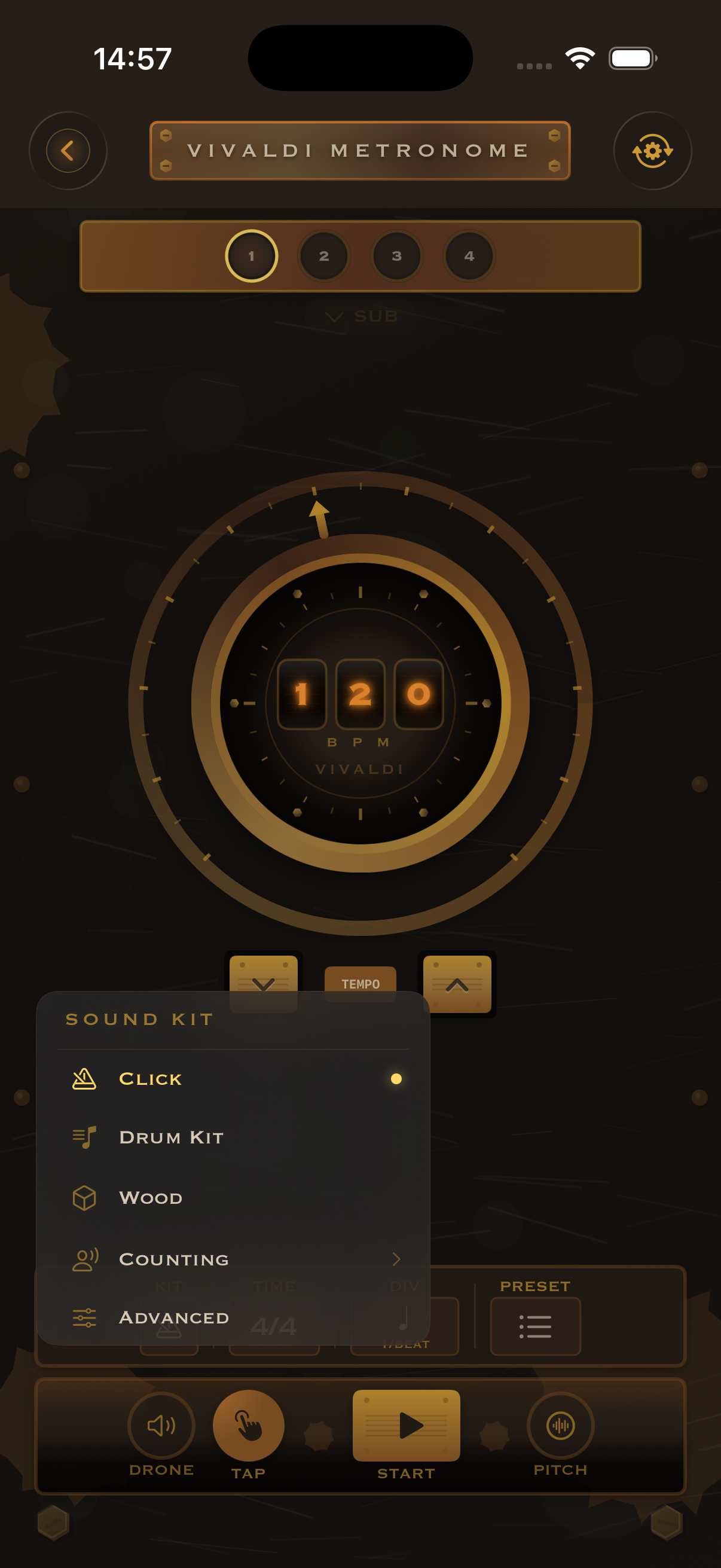
From the Metronome view, tap the Sound Kit area to reveal the 5 available modes: Click, Drum Kit, Wood, Counting, and Advanced.
Advanced Beat Config
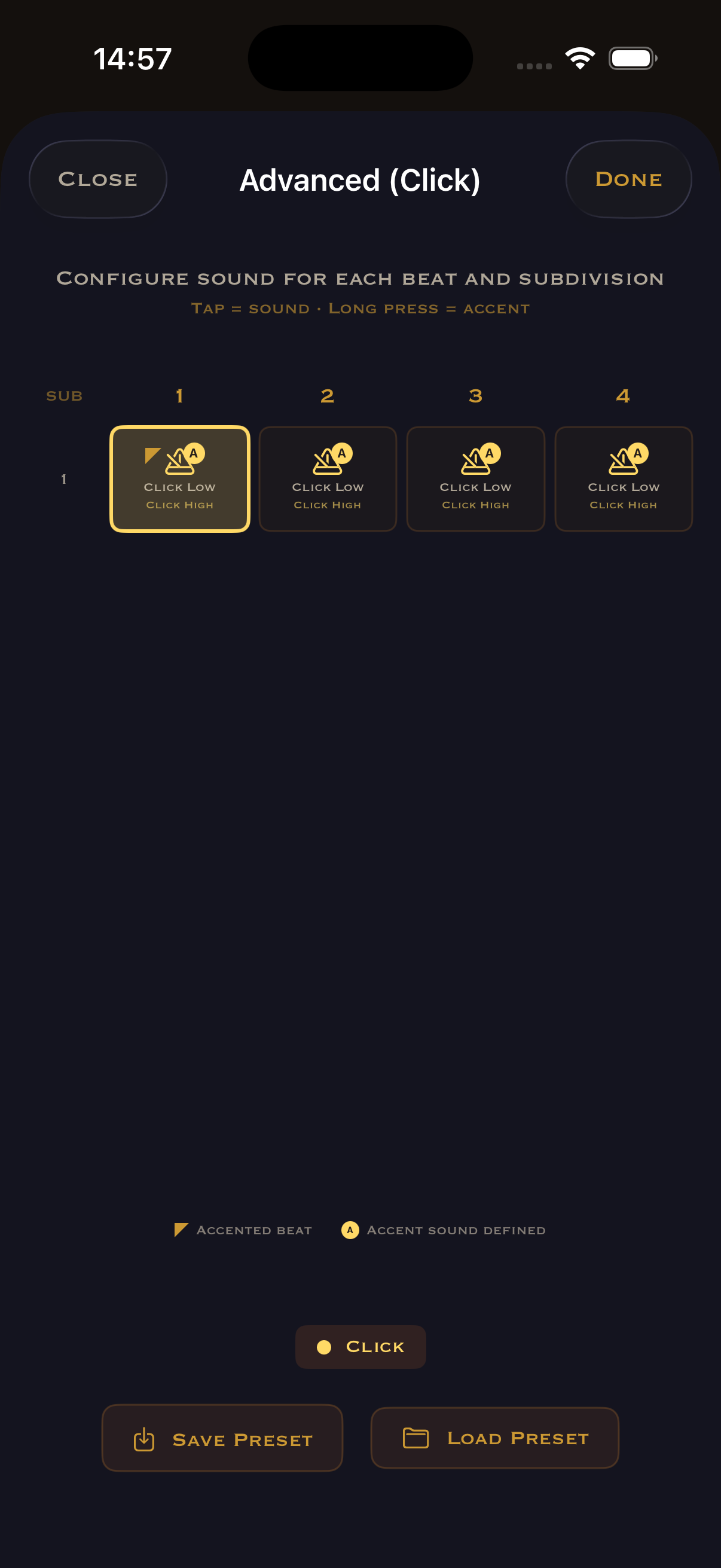
Select "Advanced" to open the beat/subbeat grid. Each cell shows the assigned sound. Tap a cell to change its normal sound, long-press to set its accent sound.
Browse the Sound Library
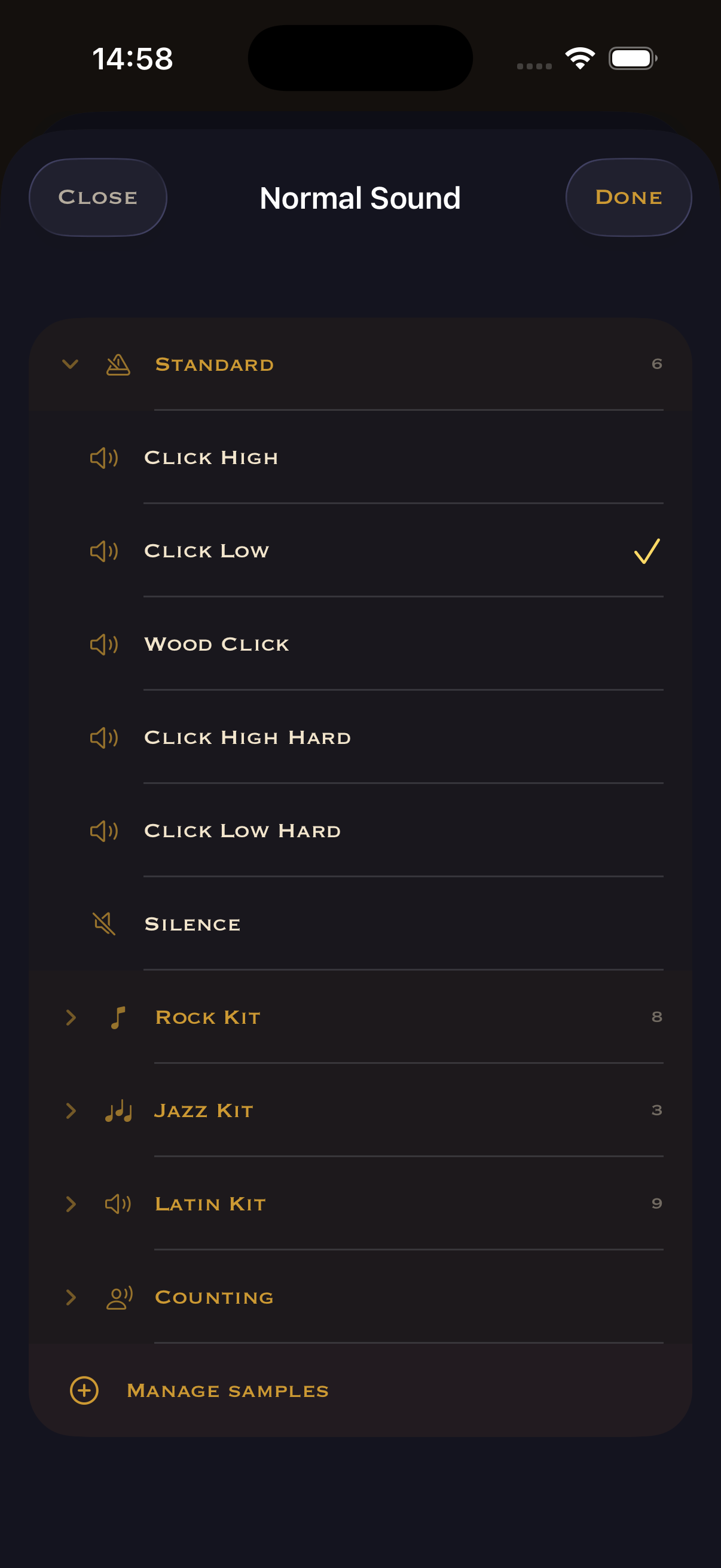
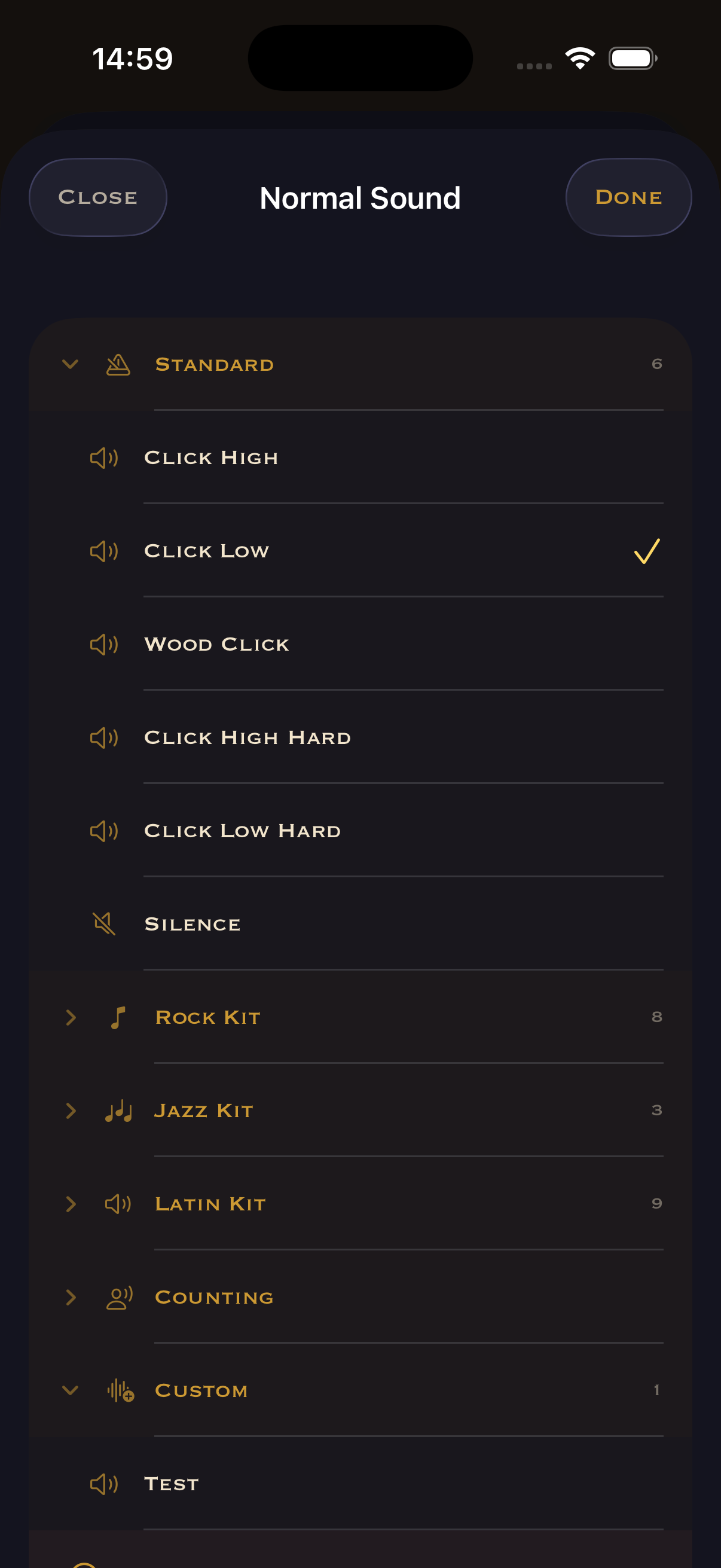
The full sound library: Standard (6), Rock Kit (8), Jazz Kit (3), Latin Kit (9), Counting voices. Scroll to the bottom and tap "Manage Samples".
Samples Manager
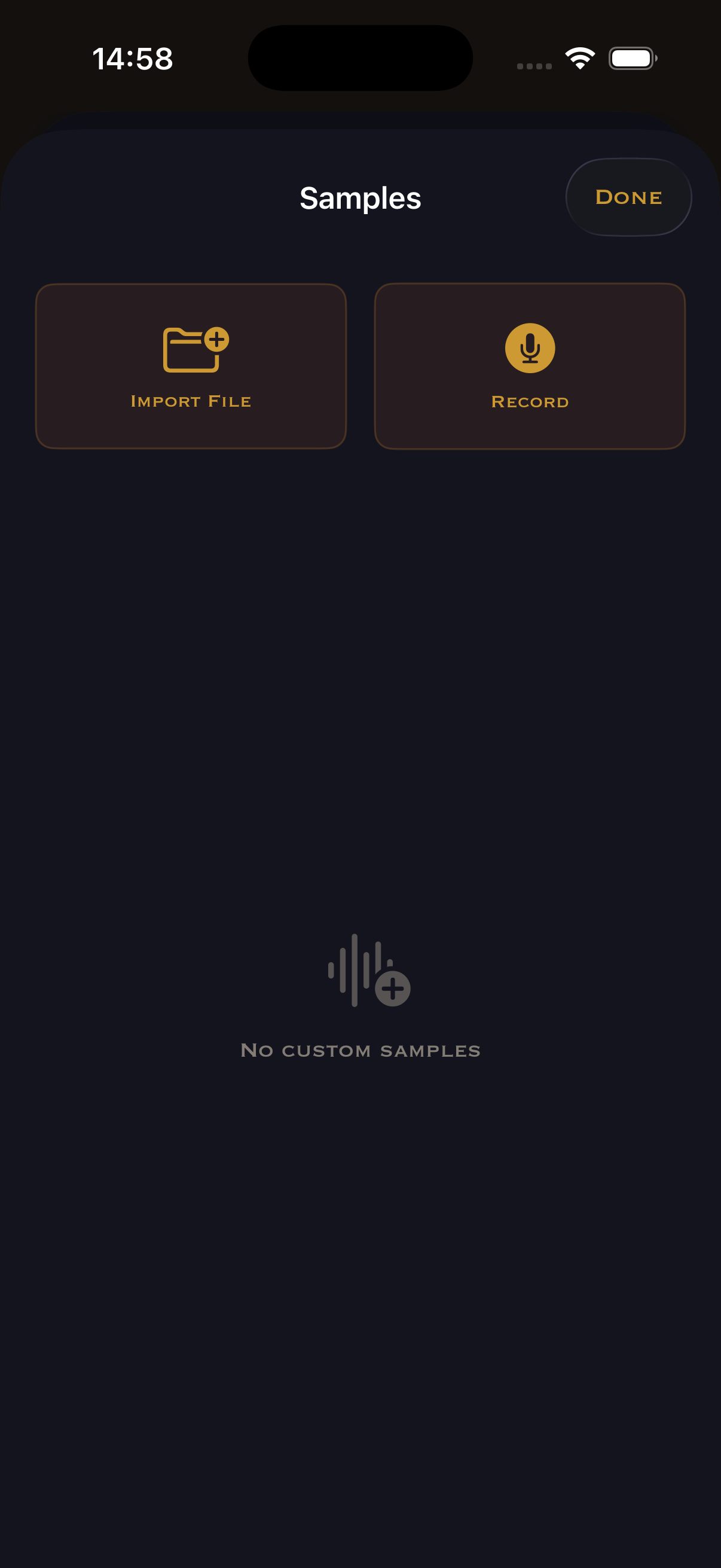
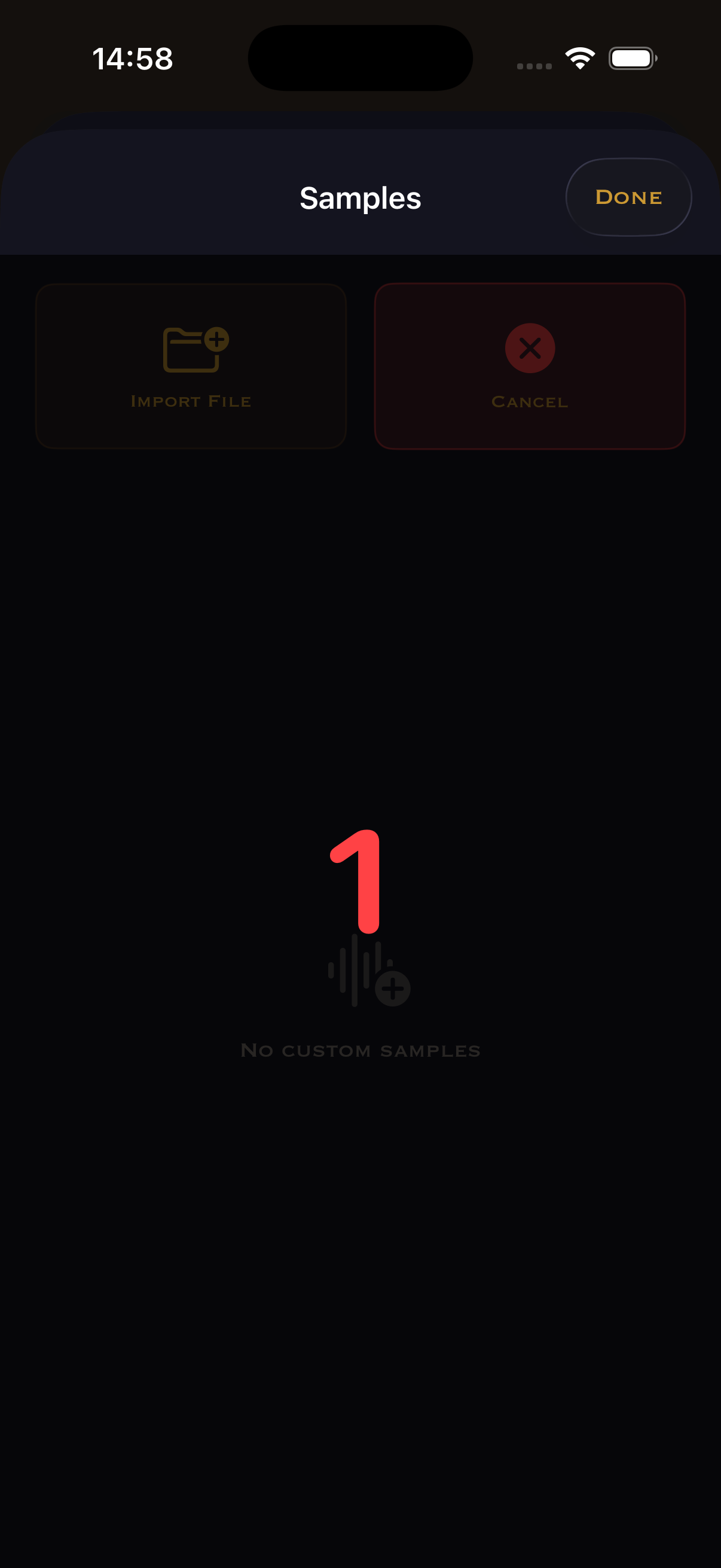
Two ways to add custom sounds: Import an audio file from your device, or Record a new sample with the microphone. Tap "Record".
Record your sample
A countdown starts (3, 2, 1...). Make your sound — clap, tap the table, hit your instrument, anything you want as a click.
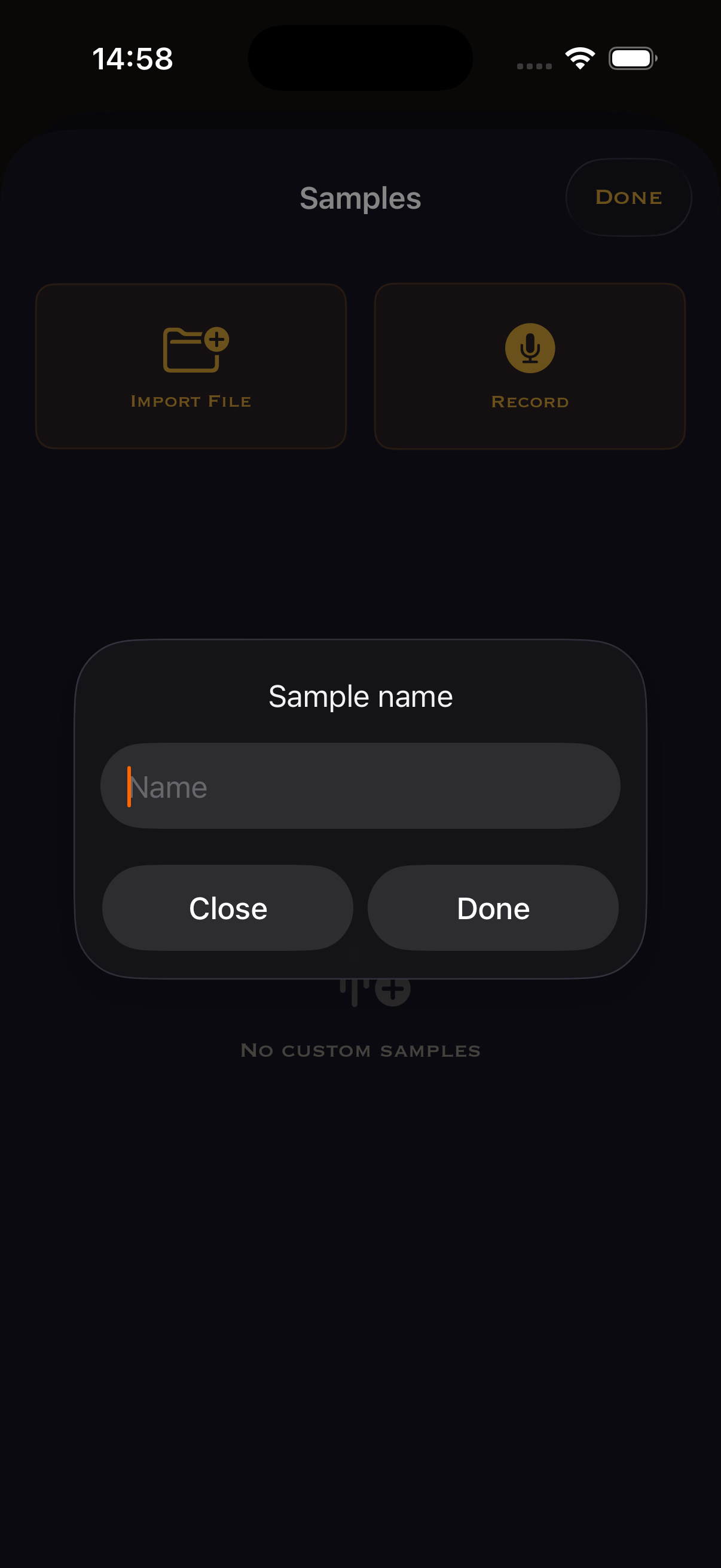
Name your sample
Choose a descriptive name — you'll see it in the sound library later. Tap "Done" to proceed.
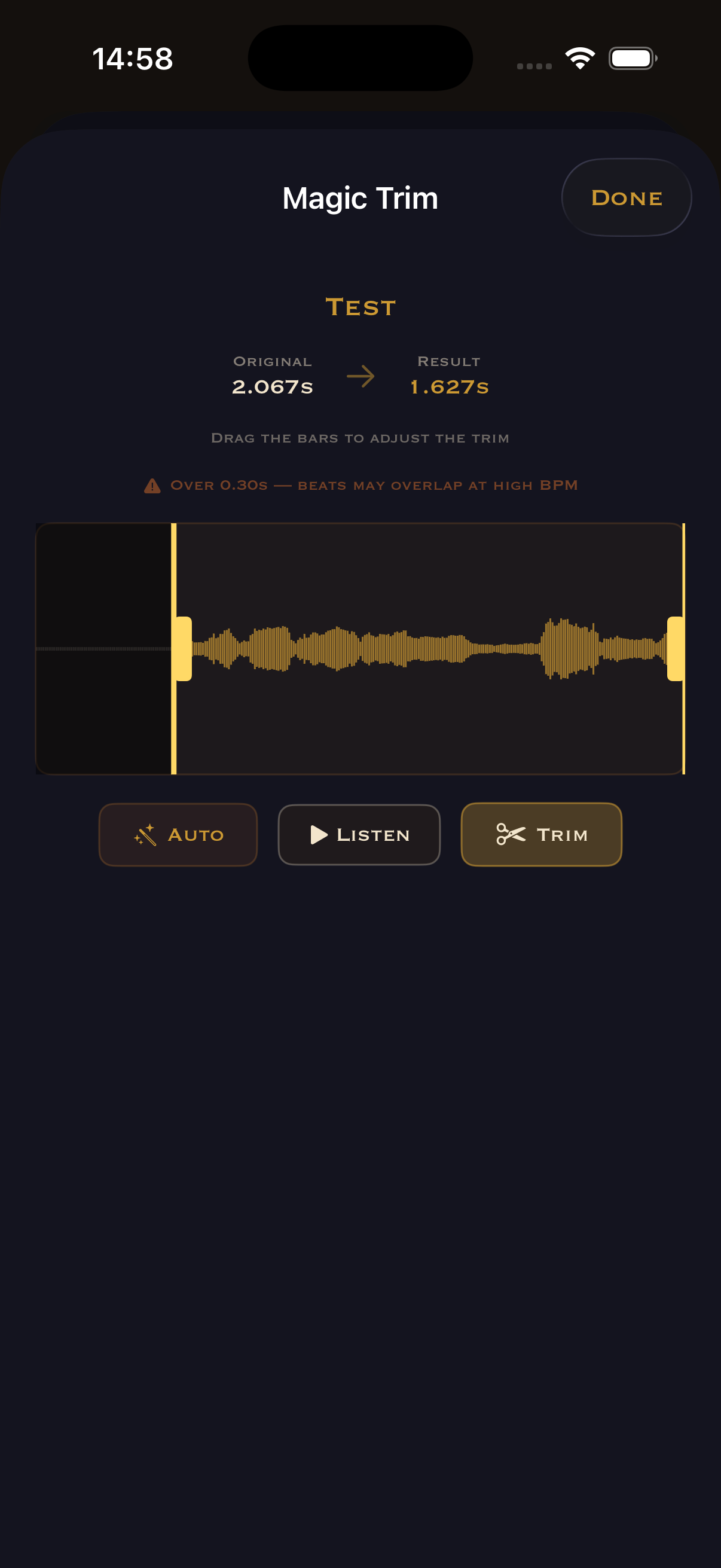
Magic Trim
The waveform editor opens. Your recording is 2.067s — way too long for a metronome click. Drag the yellow bars to isolate just the hit. Warning: >0.30s means beats overlap at high BPM.
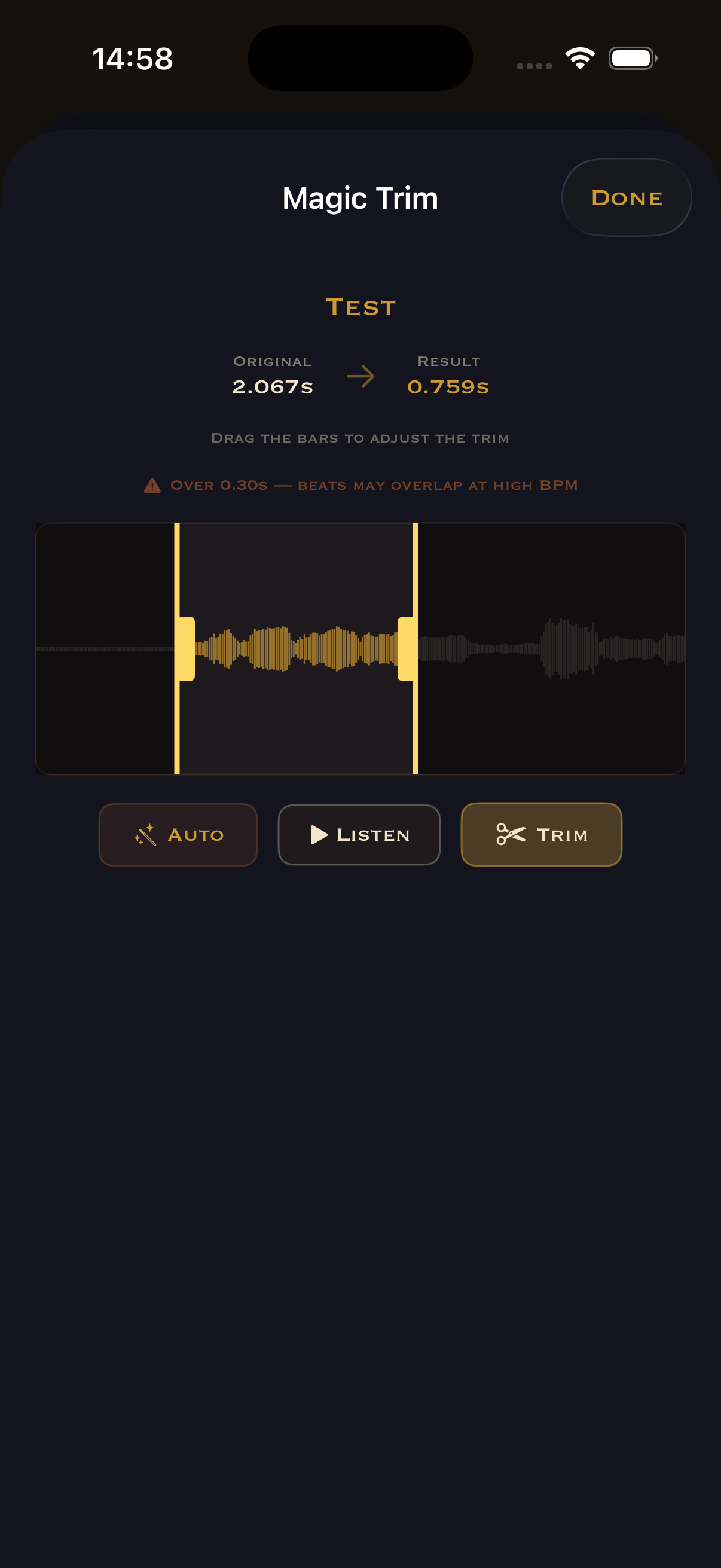
Adjust the trim
Drag tighter. "Auto" detects the best trim automatically. "Listen" to preview. When happy, tap "Trim".
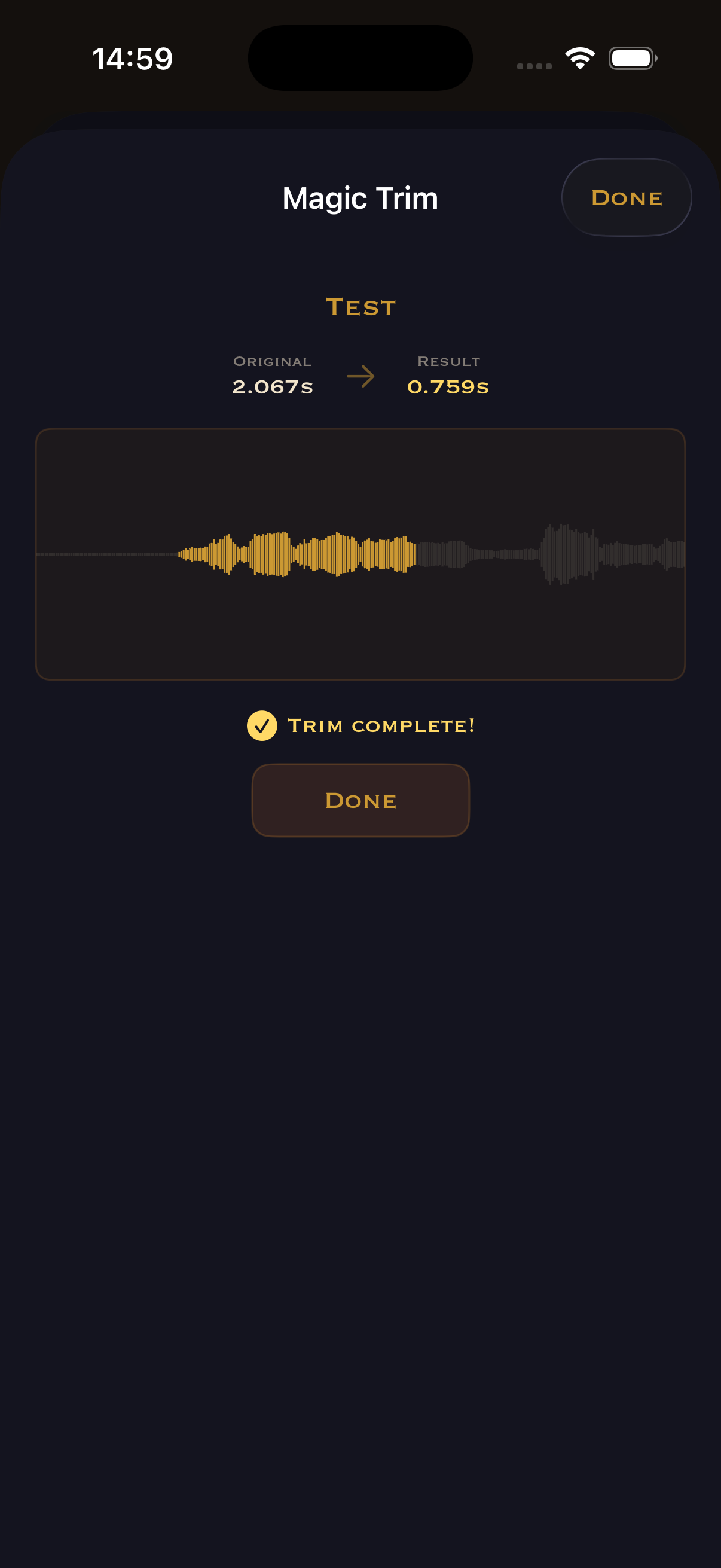
Trim complete!
Done — the trimmed waveform is saved. Tap "Done" to go back.
Custom sample ready
Your sample "Test" appears under "Custom" at the bottom of the sound library. Select it to assign it to any beat or subbeat in the Advanced grid.